
Quick answer
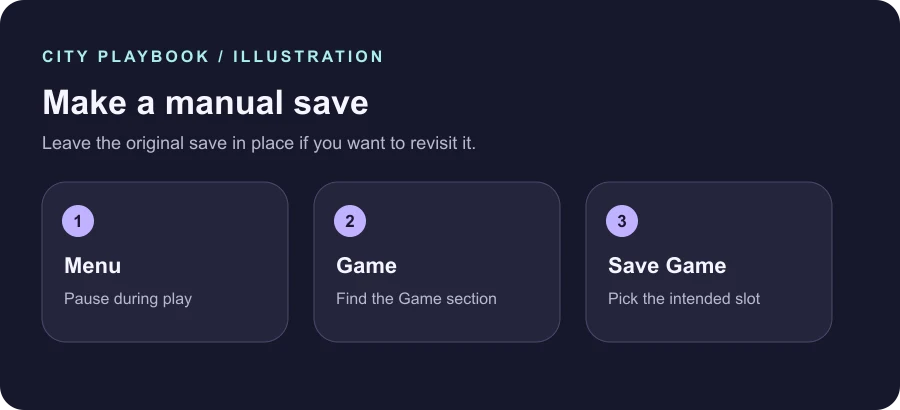
Open the game menu, choose Game, then select Save Game. Pick the intended slot and check its entry before you leave the menu. Use the load option in the same area when you want to return.
In this guide
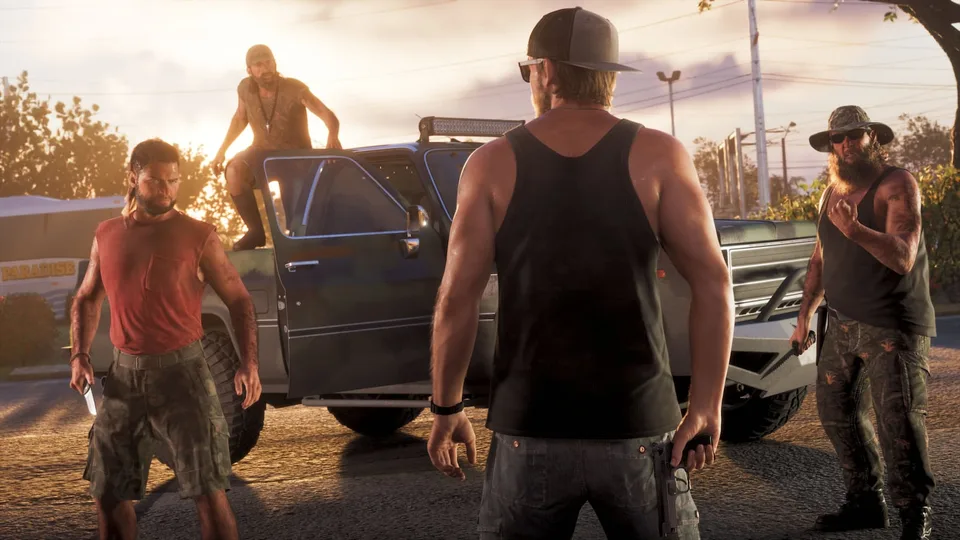
Make a manual save from the Game menu
To understand how to save in GTA 6, start with the manual option. Open the menu during play, go to Game and choose Save Game. Read the slot list before confirming. If you plan to keep your current save as a backup, choose an open or disposable slot so the older point remains available.
Use an intentional point in your play session. The beginning of a chapter, a return to free roam or a moment before a choice you want to revisit can be helpful. The benefit of a manual save is that you choose the moment yourself and have a specific entry you can look for later.
Protect a point you might want to revisit
Keep one rolling save for ordinary progress and a separate slot for any moment you would be disappointed to lose. A short note such as the chapter or the last objective can help you identify the backup without opening a spoiler-heavy mission list. If the menu shows a time or progress label, use it to distinguish similar entries.
Review the current slot whenever several people play on the same console or you switch between older and newer saves. Before you overwrite an entry, check that it is the one you intended to replace. The least disruptive way to make a backup is usually to save to another available slot.
Find the same slot when you load
Return to Game and use its load option. Compare the slot, date or progress details with the point you intended to restore. Keep the most recent point separately before loading an older one if you want the option to go back to it. This is especially helpful when you are testing more than one route or setup.
Review the confirmation and verify the restored location or objective once the game loads. A familiar current objective can be a better quick check than relying on the save time alone. Keep the older entry until you are happy with the result.
If Save Game is unavailable
Check whether you are in the Game section and whether the game allows you to save in your current state. If you have just entered an activity, wait for a normal pauseable point and see whether the option returns. Read any in-game explanation before you close the game or discard progress.
Published launch coverage documents the manual menu and reports some restrictions. The safest check is to follow the prompt on your own version and confirm that a manual entry actually appears. A checkpoint you see during a sequence and a slot you deliberately made serve different purposes when you later want to load a specific point.
Your checklist
Mark the steps you have completed.
0 of 3 complete
Sources
These notes follow the published references below. Match controller labels and prompts to the version you are playing.