Keyboard and touch controls
- WASD
- Move or drive
- E
- Interact
- Space
- Brake while driving
- Q
- Exit vehicle
For touch, use the movement area and the action controls in the game. Open the standalone view if you need more vertical room.
Get oriented in Sunset Strand
Grand City Auto VI: Market Shift is a free browser game set in a cartoon coastal district. Begin near the beach and look for the meeting point of the waterfront road and the side streets. The bright buildings and parked vehicles make it easy to recognize the starting blocks. Pick a landmark you can identify again, such as the market or a recognizable junction, before following a marker farther away from the beach.
The game gives you three useful kinds of information at once. The main view shows crossings, parked cars and obstacles. The minimap gives you the shape of the streets and helps you connect a neighborhood with the marker you want to reach. The objective panel tells you which action actually counts. When those cues point in slightly different directions, use the map to find the approach and the objective to identify what to do when you arrive.
Keep the first outing short if you are learning the controls. Move down the block, turn around and return to your start. Use the hints in the corner while you walk, then look at them again after entering a vehicle. The controls change with the current activity, so a quick look is more useful than trying every key beside a busy junction.
Learn how your vehicle responds
Start driving on a wider road where you have room to slow down. The same movement keys you use on foot control the vehicle. Let the car straighten out before you accelerate into a crossing, then use the brake ahead of the turn. The first few streets are a good place to learn how much space you need. A slow, wide turn usually leaves more room to correct your line than a last second turn close to an obstacle.
Pick a ride that fits the next objective. If a job names the yellow truck or marks a specific vehicle, follow that marker before picking the closest parked car. On a free drive, try a ride you can comfortably guide through the neighborhood. Exit somewhere with enough space to walk around it. Read the new action prompt once you get out, especially if your next task requires interacting with a sign or a character.
Keep the minimap in view without steering from it alone. A marker can indicate a destination behind buildings or across another road. Follow the street you are on until you see a usable turn. As you come close, slow down and look ahead for the approach that is actually open in the scene.
Route one: clear Night Market Blockade with a truck
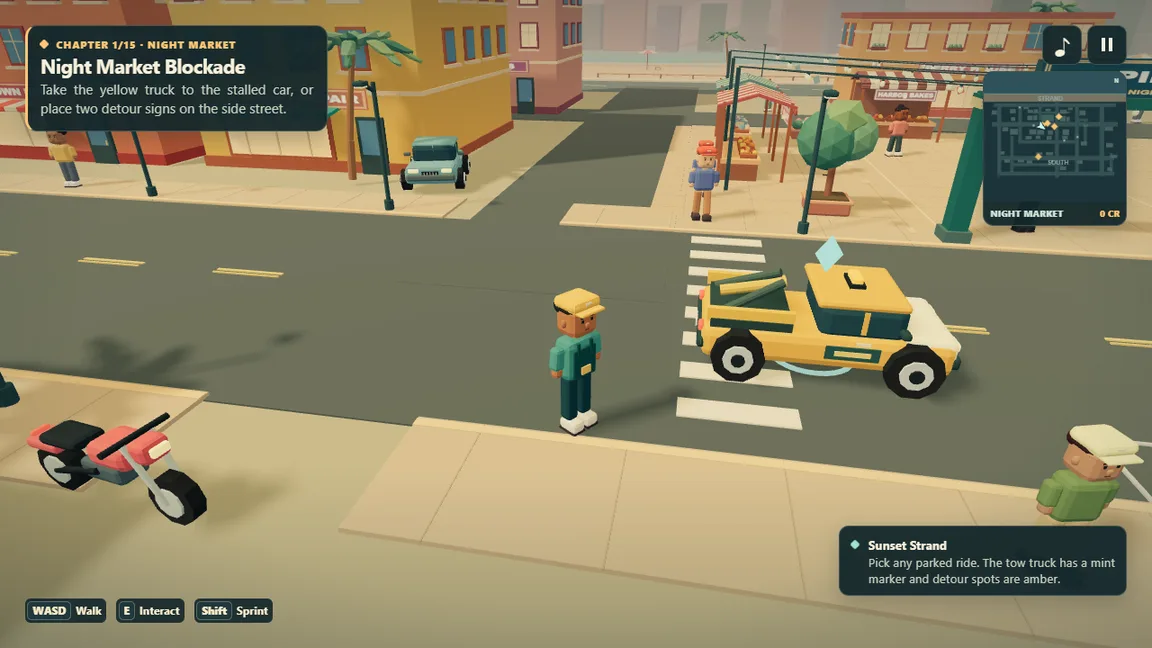
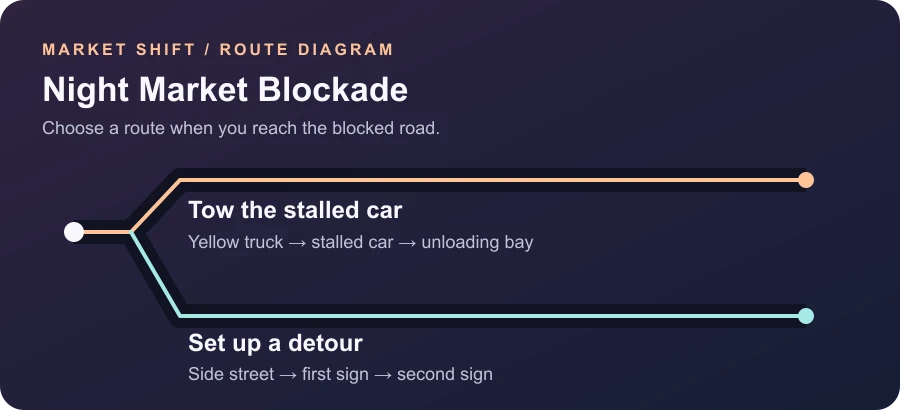
The first story chapter gives the yellow service truck a specific job. Find the truck, enter it and locate the stalled vehicle indicated by the current objective. Leave room to approach it rather than driving straight into the blockage. Once you are near enough to interact, read the prompt. Confirm the connection before driving away so you can see whether the objective has changed.
Follow the unloading marker with the second vehicle behind you. Give yourself more space to turn than you would in an empty car. If a tight approach makes it difficult to steer, stop and take a wider path rather than repeatedly forcing the same corner. Watch the tow while you pass street furniture or parked rides; looking at the truck alone can make the extra length easy to forget.
At the unloading area, slow down and look for the next prompt. Check that the chapter recognizes the delivered vehicle before leaving the area. If your marker still points back to the car, confirm that it is attached and that you have brought it to the intended zone. The objective panel is the place to verify this. It distinguishes arriving near the right street from finishing the action the chapter needs.
Route two: mark a way around the blockage
The detour serves the same opening chapter and uses two marked sign locations. This is a useful route if you want to look at the neighborhood on foot while getting used to the camera. Follow the side street marker until you can see the placement prompt. Interact there and then check which marker is still active. The first sign is part of the route; the chapter needs the second marked spot as well.
After placing one sign, orient yourself by the next road rather than assuming the other marker points back toward the beach. Keep the objective panel visible as a reference. If you drive between the markers, stop with space to step out so you can handle the interaction cleanly. A short walk from the nearest open junction can be easier than trying to park on top of a target point.
Choose between towing and setting the signs based on the skill you want to practice. The truck route gives you a chance to handle a load and line up with a destination. The detour asks you to read markers and make two short stops. Finish the route you choose and watch the street and the objective update before setting out for another job.
Read the district before taking another job
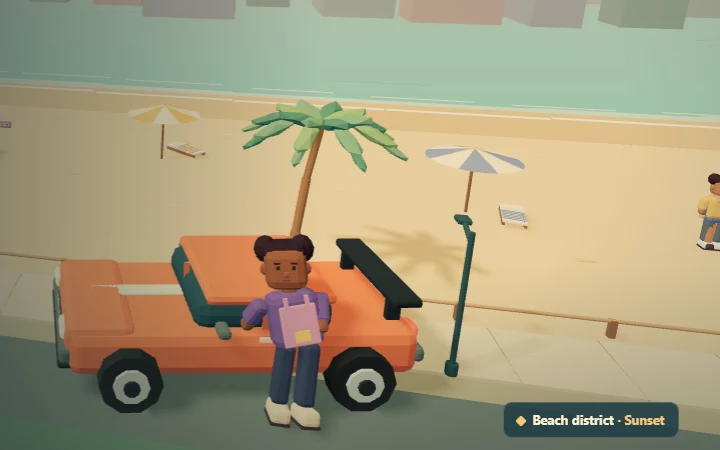
Once you know your way around the market block, use nearby junctions to work out which roads run back to the beach. This makes exploring easier when your next destination is beyond the streets you just learned. Look at color and shape as you go. A broad waterfront road, a stand beside the market and a row of parked cars give you more memorable reference points than a single turn direction.
Grand City Auto VI lets you take a short drive without committing to a long task. Experiment near the starting area, then return when you are ready to read the current objective. If the marker looks close on the map, check whether you are on the same street before making another lap. Moving to a better angle can reveal an entrance that was hidden behind a building.
The city also has later driving activities and taxi work. These ask for predictable control as well as navigation. A first drive around Sunset Strand is good practice for joining a later activity: learn where to leave extra room for braking and how to exit a vehicle when a task moves from driving back to walking.
Return to a story objective and keep your progress
The story continues beyond the market with a series of local jobs. The easiest way to resume after exploring is to read the objective you have now, identify its marker and travel to a nearby junction. Check the wording at the destination before you press the interaction key. This helps avoid spending time with the wrong parked vehicle or finishing a step from a different activity.
The game keeps its own browser save. It can restore progress in the same browser where that save is available. Use the pause menu to review available save controls if you need to move a save between copies. Check the current objective after returning, especially if you stopped while traveling to a location. The objective text and the world around you together tell you which part of the job to tackle next.
If a vehicle stops in an awkward place, look for room to reverse or exit before you commit to a restart. The pause menu includes a recovery action for getting unstuck. Read the confirmation before choosing a restart or replacing a save. Rejoining from the same browser usually offers a shorter path back to the current objective than trying to replay something from memory.
Set up the player for your screen
The player above opens Market Shift directly in the page. Focus the game and choose the start button inside its cover. Use the controls shown by the game as you move around. If pressing a key scrolls the page, click the play area first. The toolbar above the game gives you a fullscreen control when your browser allows it and a link to the standalone player if you prefer a larger space.
On touch devices, the game can show touch controls. Open the standalone player if keeping the entire game and touch controls in view is difficult. A landscape orientation gives the streets and map more horizontal room. On a smaller display, a short move between markers is easier to follow than trying to read the minimap while turning quickly.
If the game displays a graphics error, check whether the browser can use WebGL 2. Close other heavy tabs, open the standalone player or try a current browser with hardware acceleration enabled. Read the message the player gives you before retrying. If the page itself stops responding, reload and review your browser save before you start a new game.
Open the guide that matches your game
This page covers the Market Shift browser project, including its own first mission, vehicles, controls and save. Use its map and prompts to find the next action in this city. When you are looking up a term from a console screen, switch to the GTA VI Guides library at the top of the site. The guides cover separate console tasks such as changing subtitles, using a manual save, and following the boat and camp objectives in Gone Fishing.
The two links at the end of the page stay available as you read. Choose the game link to return to the top of this player, or choose the guides link to search by the words you see on your console. This keeps the browser game controls, mission routes and save information together while making the reference library easy to reach.