
Quick answer
Pause the game and open Settings. Open UI for subtitles, captions and readability options. Choose Control Scheme for button layouts or Controller for aim and look sensitivity.
In this guide
Open the right settings category
The GTA VI settings menu groups options by what they affect. Start by naming the problem you want to fix. Captions are a UI setting, while how quickly the view moves is a controller or camera question. That distinction keeps you from looking through every menu or changing a preset that affects unrelated options.
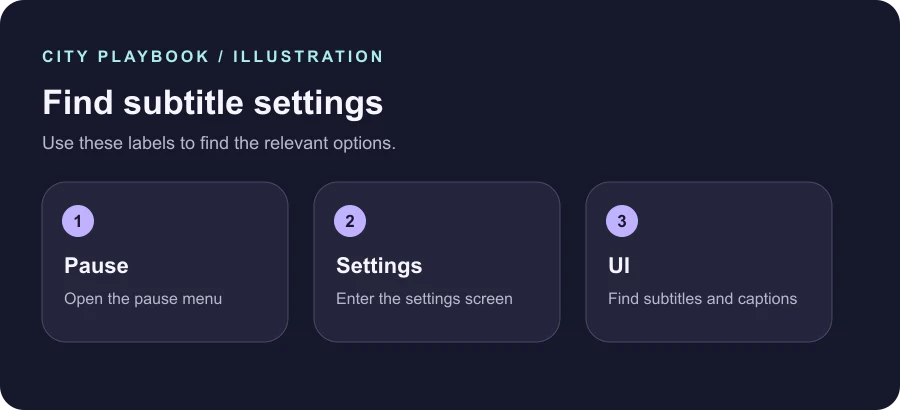
Open the pause menu, select Settings and choose the relevant group. The official support page lists Control Scheme, Controller, Gameplay, Display, UI, Camera and Audio. The drawing below is a reading aid for the menu path. You can follow the headings even if the screen looks different on your console.
Make subtitles and the HUD easier to read
Under UI, use Subtitles & Captions for spoken words or caption options. Use Scaling & Readability when menus, prompts or other text are difficult to make out from where you sit. The same menu also groups navigation, reticle and notification options, so look here first for problems with information drawn on the screen.
Make one change and return to a place where you can judge it naturally. For example, watch a conversation with both speech and background sound or check a familiar on-foot prompt from your normal viewing distance. If the whole picture feels dim or low contrast, inspect Display before increasing every HUD element. The official list includes high-contrast shader options under Display.
Choose the controls that match what you are doing
Use Control Scheme to inspect the layout for a particular activity. The official guide lists separate layouts for walking, aiming, melee, land and water vehicles, aircraft, bicycles, swimming and parachuting. A control you use in a car may therefore differ from what you see while walking. Check the layout for the action causing trouble.
Use Controller for aim and look sensitivity or inverted controls. Adjust one value at a time so you can tell what helped. Test a short turn, a slow turn and a small correction before making another change. If you use a DualSense on PS5, relevant features appear in this area. On Xbox, follow the button prompts and options shown on your console.
Back out of a change that did not help
Before changing several GTA VI settings, write down the original values or take a reference capture on your own console. If the new setting feels worse, put that value back and run the same brief check. Comparing the same movement or conversation is more useful than testing in a different scene.
Rockstar lists Restore All and Restore Default options near the bottom of the settings screen. Review the selected scope and any confirmation before proceeding, especially when you have already adjusted controls or captions to suit your needs. After restoring, check the important option again before leaving the menu.
Confirm the setting in a repeatable situation
Keep the check simple. If captions were the problem, return to dialogue and see whether the words stay legible over a busy scene. If a button layout was the problem, repeat the same action once with the exact character state or vehicle type. That gives you a useful reference when you open these GTA VI settings again.
GTA VI settings updates can move or rename options. The menu labels on this guide follow the published support article. Use the text shown on your own version of the game if a label has changed, and check the platform before following somebody else's controller directions.
Settings at a glance
| Task | Menu | What to check |
|---|---|---|
| Read conversation | UI | Subtitles & Captions |
| Find vehicle buttons | Control Scheme | The current vehicle layout |
| Adjust aiming | Controller | Aim & Look Sensitivity |
Your checklist
Mark the steps you have completed.
0 of 3 complete
Sources
These notes follow the published references below. Match controller labels and prompts to the version you are playing.